Deployment of Provider-Hosted App Package on Azure
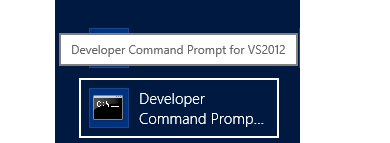
Provider-Hosted App on Azure Step 1: In windows, search for Developer Command Prompt of VS2012 . Right click the icon and click on Run as administrator . Here use the msbuild command with the below parameters and values, which will build the solution and create a package. msbuild ".sln file path" /p:DeployOnBuild=true /p:DeployTarget=Package /p:Configuration=Release /p:PublishProfile=" FTP.pubxml file path" /p:Password="usrPWD value” /p:AllowUntrustedCertificate=true /p:VisualStudioVersion=12.0 o msbuild : path to .sln file of your solution o DeployOnBuild : true o DeployTarget : Package o Configuration : Release o PublishProfile : path to .pubxml file of FTP settings in ‘Profiles/PublishProfiles’ folder of AppWeb path in solution o Password : value of userPWD from .publishSettings file that you have downloaded from azure web app ...